Convert HEIC to JPG on Mac Without Uploading Anything
Turn HEIC, WebP and MOV into JPG and MP4 on your own Mac: every sips and ffmpeg command verified locally, plus convt for right-click batches.
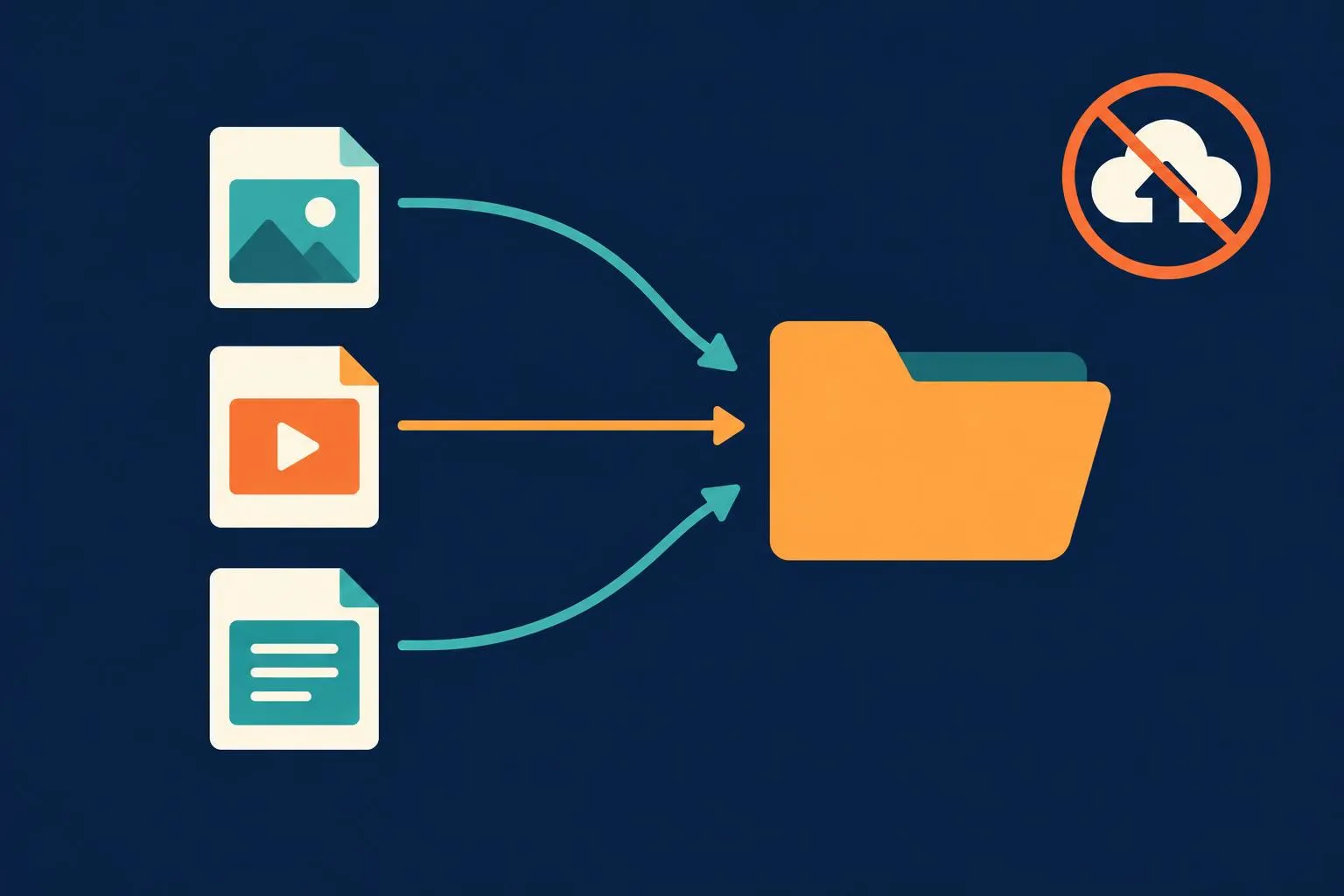
iPhone photos arrive as HEIC, images saved from the web as WebP, camera footage as MOV. To turn them into plain JPG and MP4, the reflex is to search for an online converter — and hand your contracts, ID scans and unpublished footage to someone else’s server before anything else happens. This playbook takes the other path: convert locally on a Mac, and the file never leaves your disk. When you finish, you will have three commands you can paste straight into a terminal (one HEIC to JPG, a whole folder at once, MOV to MP4) and a persistent option that puts 40 formats into the right-click menu.
Key points
- macOS ships with sips, which reads HEIC and WebP and writes JPEG directly; the one-file and batch commands are one line each, and every command in this piece was run on a Mac (Apple Silicon) on 2026-10-10.
- MOV to MP4 is a single ffmpeg command (
-c:v libx264 -crf 23 -c:a aac); a 2-second test clip converted cleanly. - convt puts 40 formats into the right-click menu and routes multi-hop when no direct path exists; packaged builds start a 7-day trial on first conversion, while source builds are unrestricted.
The result and the prerequisites
When you are done, the folder looks like this: photo.jpg sits next to photo.heic, every HEIC in the directory has converted in one pass, and clip.mov has become a clip.mp4 that survives being sent through chat apps. Nothing in the transcript is a network request.
The prerequisites are two: sips comes with macOS (it lives at /usr/bin/sips, nothing to install) and covers images; ffmpeg covers video, and brew install ffmpeg fetches it if missing. convt in step four is the optional resident tool. We used to think of sips as a resize utility; it turns out to read HEIC and import WebP directly, so half of this job needs nothing beyond what the system already ships.
One switch prevents the problem at the source: on the iPhone, set Settings › Camera › Formats to Most Compatible and the camera shoots JPEG from then on. Already-taken HEIC files still need the steps below.
HEIC to JPG
One file, output written to the current directory:
sips -s format jpeg photo.heic --out photo.jpg
A whole folder in one pass (tested on two HEIC files):
for f in *.heic; do sips -s format jpeg "$f" --out "${f%.heic}.jpg"; done
Both ran locally: sips read a 1456×816 HEIC and produced a JPEG at the same resolution. To shrink while converting, add --resampleWidth 2048; to land the batch output elsewhere, replace ${f%.heic}.jpg with a target path such as ~/Desktop/"${f%.heic}.jpg".
WebP and MOV
WebP saved from a web page takes the same one-liner:
sips -s format jpeg shot.webp --out shot.jpg
MOV to MP4 belongs to ffmpeg. -crf 23 sits near the visually-lossless sweet spot (lower is better quality and bigger files), and -preset medium balances speed against compression:
ffmpeg -i clip.mov -c:v libx264 -crf 23 -preset medium -c:a aac clip.mp4
We ran it on a 2-second test clip; duration and quality came through as expected. The cheat sheet:
| Target | Command | Verified |
|---|---|---|
| HEIC to JPG (one) | sips -s format jpeg photo.heic --out photo.jpg | locally, 2026-10-10 |
| HEIC to JPG (batch) | for f in *.heic; do … done | locally, 2026-10-10 |
| WebP to JPG | sips -s format jpeg shot.webp --out shot.jpg | locally, 2026-10-10 |
| MOV to MP4 | ffmpeg -i clip.mov -c:v libx264 -crf 23 … | locally, 2026-10-10 |
| Any of 40 formats | install convt, pick the target in the right-click menu | official formats page, generated from the converter |
The resident option: convt
Commands suit one-off jobs; for regular conversion work, install convt (our entry has the full tour): written in Rust, open source under AGPL-3.0. Images, audio and video, PDFs and Office — 40 formats routed through local engines such as FFmpeg, PDFium and LibreOffice, with the target picked from the right-click menu and nothing uploaded. When no engine converts directly, it plans a chain of at most three steps, so even HEIC to DOCX is reachable. Quality, size and page options all have flags; convt presets and convt --help list them.
brew tap opencoredev/convt https://github.com/opencoredev/convt
brew install --cask convt
Read the licensing line: packaged builds start a 7-day trial on the first conversion, while building from source is unrestricted; Office formats need LibreOffice installed locally. It is friendly to AI agents too — convt --skill prints a skill document that teaches a coding agent to look up formats and run conversions on its own.
What goes wrong
- The batch loop copied from a bash tutorial throws an error. The parenthesized form
for f in (*.heic)fails in zsh withunknown file attribute— it hit us on the first run. Drop the parentheses:for f in *.heicworks in both shells. - Transparency disappears after HEIC to JPG. JPEG has no alpha channel; for images with transparency convert to PNG instead (
sips -s format png) rather than wondering why the background turned black. command not found: ffmpegmeans the machine has no ffmpeg yet. Runbrew install ffmpegfirst (the first install pulls a number of dependencies and takes a few minutes), then rerun the command.- The hidden cost of online converters. The upload itself is the price: queues for large files, size caps on free tiers, watermarks on export — and whether contracts or ID scans persist on the server depends on each site’s privacy policy. That is the reason a local path exists.
- convt’s two edges: the Windows right-click menu is built but not yet in the release installer, and for very large PDFs or unusual codecs, run
convt enginesandconvt targets <file>first to confirm your machine’s engines actually cover the job.
Where to take it next
To make the flow permanent, turn the three commands into a Finder Quick Action or a shell alias. Once the format mix gets messy — HEIC, OpenEXR, DOCX and PDF crossing paths — hand the job to convt’s right-click menu and let convt targets scout the route first. And since the file should not be uploaded for conversion, the same logic applies to transfer: croc and Syncthing cover point-to-point moves without a server, so the whole path — conversion and transfer — stays off third-party machines.